8. (Obsolete contents)
8.1. Securing the communication using SSH tunnels
8.2. Setting up ssh server
SSH server provides functionalities which generally allows to
Securely transfer encrypted data / streams
Securely transfer encrypted files (SFTP)
Set up port forwarding via open ports, so called tunneling, allowing to get access to dedicated ports through a firewall in between
Remote command execution
Forwarding or tunneling a port
Securely mounting a directory on a remote server (SSHFS)
Ssh server is the most common on Unix systems, freeSSHd server can be used on Windows free of charge. The server usually requires root privileges for running. Ssh TCP/UDP protocol uses port 22 and uses encrypted communication by default.
Connection to a ssh server can be carried out by two ways. A user can authenticate by typing username and password. However, MuPIF prefers authentication using asymmetric private-public key pairs since the connection can be established without user’s interaction and password typing every time. Fig. 8.1 shows both cases.
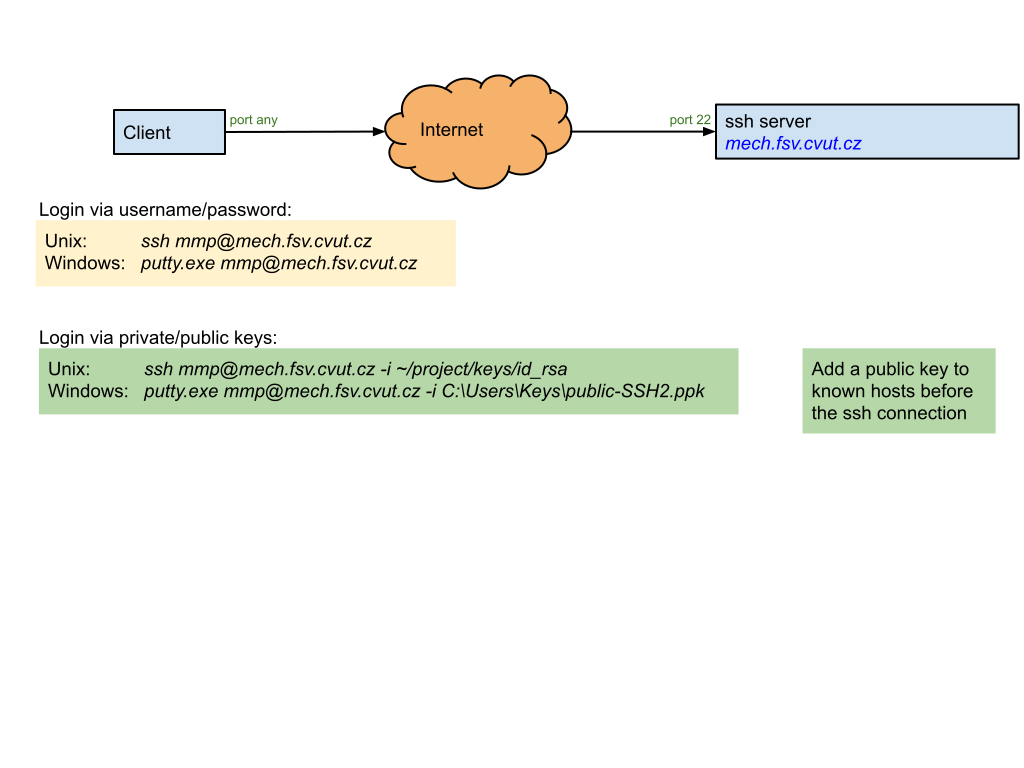
Fig. 8.1 Connection to a ssh server using username/password and private/public keys
Private and public keys can be generated using commands ssh-keygen for Unix and puttygen.exe for Windows. Ssh2-RSA is the preferred key type, no password should be set up since it would require user interaction. Keys should be stored in ssh2 format (they can be converted from existing openSSH format using ssh-keygen or puttygen.exe). Two files are created for private and public keys; Unix id_rsa and id_rsa.pub files and Windows id_rsa.ppk and id_rsa files. Private key is a secret key which remains on a client only.
Authentication with the keys requires appending a public key to the ssh server. On Unix ssh server, the public key is appended to e.g. mech.fsv.cvut.cz:/home/user/.ssh/ authorized_keys. The user from a Unix machine can log in without any password using a ssh client through the command:
ssh user@mech.fsv.cvut.cz -i ~/project/keys/id_rsa
Ssh protocol allow setting up port forwarding via port 22, so called tunneling. Such scenario is sketched in Fig. 8.2, getting through a firewall in between. Since the communication in distributed computers uses always some computer ports, data can be easily and securely transmitted over the tunnel.
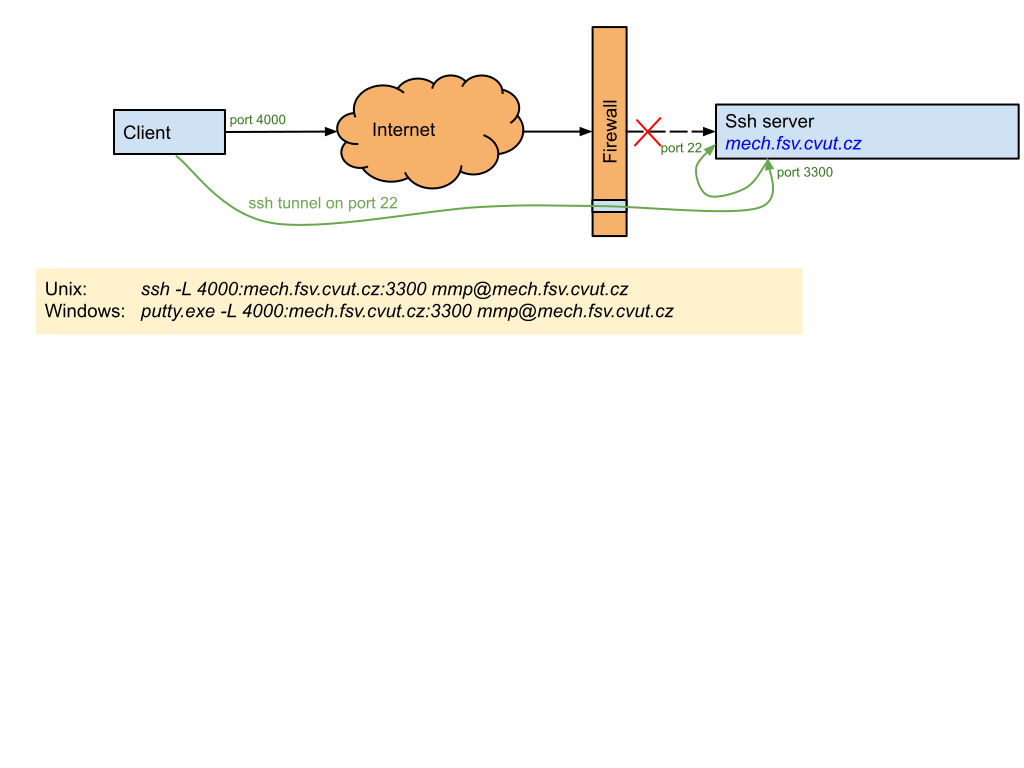
Fig. 8.2 Creating a ssh forward tunnel
8.3. Example of distributed scenario with ssh tunneling
The process of allocating a new instance of remote application is illustrated on adapted version of the local thermo-mechanical scenario, already presented in 7. Developing user workflows. First, the configuration file is created containing all the relevant connection information:
#Network setup configuration
import sys, os, os.path
import Pyro4
# Pyro config
Pyro4.config.SERIALIZER="pickle"
Pyro4.config.PICKLE_PROTOCOL_VERSION=2 #to work with python 2.x and 3.x
Pyro4.config.SERIALIZERS_ACCEPTED={'pickle'}
Pyro4.config.SERVERTYPE="multiplex"

#Absolute path to mupif directory - used in JobMan2cmd
mupif_dir = os.path.abspath(os.path.join(os.getcwd(), "../../.."))
sys.path.append(mupif_dir)

import logging

#NAME SERVER
nshost = '147.32.130.71' #IP/name of a name server
nsport = 9090 #Port of name server
hkey = 'mmp-secret-key' #Password for accessing nameServer and applications

#Remote server settings
server = '147.32.130.71' #IP/name of a server's daemon
serverPort = 44382 #Port of server's daemon
serverNathost = '127.0.0.1' #Nat IP/name (necessary for ssh tunnel)
serverNatport = 5555 #Nat port (necessary for ssh tunnel)

jobManName='Mupif.ModelServer@Example' #Name of job manager
appName = 'MuPIFServer' #Name of application

#ModelServer setup
portsForJobs=( 9095, 9200 ) #Range of ports to be assigned on the server to jobs
jobNatPorts = list(range(6000, 6050)) #NAT client ports used to establish ssh cons
maxJobs=4 #Maximum number of jobs
#Auxiliary port used to communicate with application daemons on a local computer
socketApps=10000
jobManWorkDir='.' #Main directory for transmitting files

jobMan2CmdPath = "../../tools/JobMan2cmd.py" #Path to JobMan2cmd.py

#CLIENT
serverUserName = os.getenv('USER')

#ssh client params to establish ssh tunnels
if(sys.platform.lower().startswith('win')):#Windows ssh client
   sshClient = 'C:\\Program Files\\Putty\\putty.exe'
   options = '-i L:\\.ssh\\mech\id_rsa.ppk'
   sshHost = ''
else:#Unix ssh client
   sshClient = 'ssh'
   options = '-oStrictHostKeyChecking=no'
   sshHost = ''
Remote connection by ssh is done by setting -m 1 after the script which picks up correct configuration. It is explained on Example08-transiTM-JobMan-distrib. First, the simulation scenario connects to the nameserver and subsequently the handle to thermal solver allocated by the corresponding job manager is created using pyroutil.allocateApplicationWithModelServer service. This service first obtains the remote handle of the job manager for thermal application, requests allocation of a new instance of thermal solver, returning an instance of RemoteModel decorator, a class which encapsulate all the connection details (opened connections, established ssh tunnels, etc.) and acts as proxy to the allocated remote application instance.
8.4. Advanced SSH setting
When a secure communication over ssh is used, then typically a steering computer (a computer executing top level simulation script/workflow) creates connections to individual application servers. However, when objects are passed as proxies, there is no direct communication link established between individual servers. This is quite common situation, as it is primarily the steering computer and its user, who has necessary ssh-keys or credentials to establish the ssh tunnels from its side, but typically is not allowed to establish a direct ssh link between application servers. The solution is to establish such a communication channel transparently via a steering computer, using forward and reverse ssh tunnels. The platform provides handy methods to establish needed communication patterns (see pyroutil.connectApplications method and refer to Example07-stacTM-JobMan-distrib for an example).
As an example, consider the simulation scenario composed of two applications running on two remote computers as depicted in Fig. 8.3. The Pyro4 daemon on server 1 listens on communication port 3300, but the nameserver reports the remote objects registered there as listening on local ports 5555 (so called NAT port). This mapping is established by ssh tunnel between client and the server1. Now consider a case, when application2 receives a proxy of object located on server1. To operate on that object the communication between server 1 and server 2 needs to be established, again mapping the local port 5555 to target port 3300 on server1. Assuming that steering computer already has an established communication link from itself to Application1 (realized by ssh tunnel from local NAT port 5555 to target port 3300 on the server1), an additional communication channel from server2 to steering computer has to be established (by ssh tunnel connecting ports 5555 on both sides). In this way, the application2 can directly work with remote objects at server 1 (listening on true port 3300) using proxies with NAT port 5555.
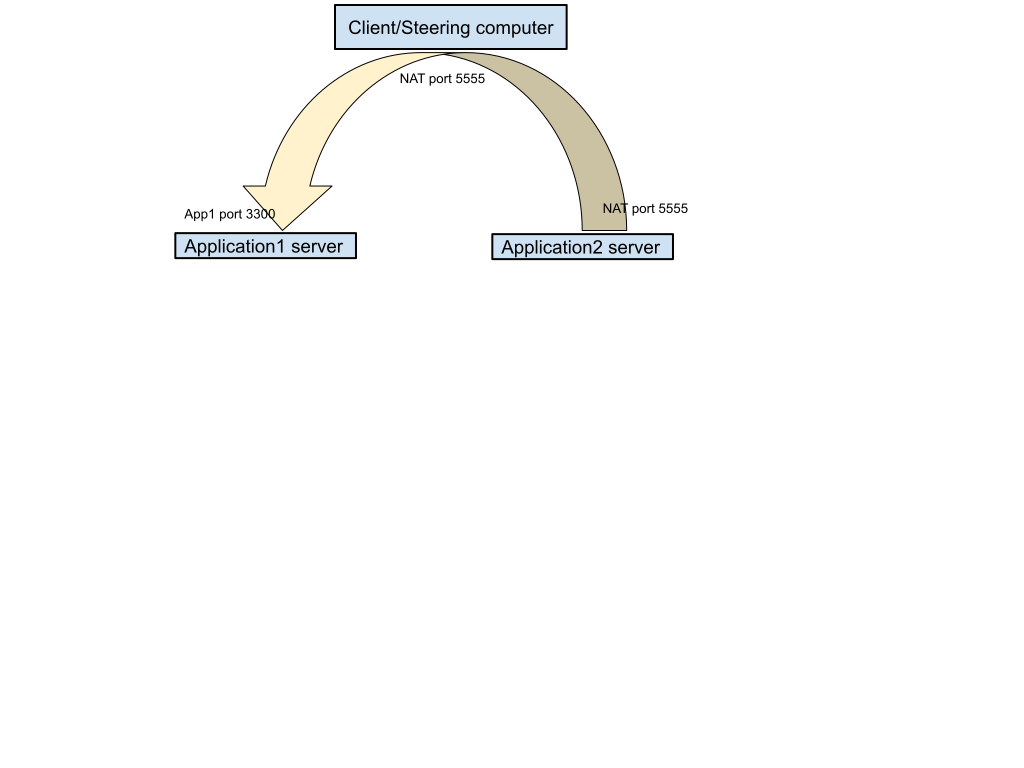
Fig. 8.3 Establishing a communication link between two application servers via SSH tunnels.
8.4.1. Troubleshooting SSH setup
Verify that the connection to nameserver host works:
ping name_server_hostname
Run the jobManTest.py with additional option “-d” to turn on debugging output, examine the output (logged also in mupif.log file)
Examine the output of server messages printed on screen and/or in file server.log
8.5. Using Virtual Private Network (VPN)
8.5.1. Generalities
This section only provides background for VPN and can be skipped. The standard way of node communication in MuPIF is to use SSH tunnels. SSH tunnels have the following advantages:
No need for administrator privileges.
Often the way for remotely accessing computers which are already in use.
Easy traversal of network firewalls (as long as the standard port 22 is open/tunneled to the destination).
They also have some disadvantages:
Non-persistence: the tunnel has to be set up every time again; if connection is interrupted, explicit reconnection is needed, unless automatic restart happens, e.g. autossh.
The tunnel is only bi-directional and does no routing; thus is A-B is connected and B-C is connected, it does not imply C is reachable from A. Though, it is possible to create a multi-hop tunnel by chaining ssh commands.